

Blog
From Inbox to Action: Designing Document Workflows That Actually Close the Loop
Automating extraction isn't enough; true document automation closes the loop with orchestration, focusing on the complete business outcome.

Blog
Automating extraction isn't enough; true document automation closes the loop with orchestration, focusing on the complete business outcome.
Here's a story you might recognize. A company implements document AI, achieves 95% extraction accuracy, and celebrates the win. Six months later, the operations team is still spending hours every day on manual tasks surrounding that extraction. They're copying data into other systems. Emailing stakeholders for approvals. Reformatting outputs for different departments. Chasing exceptions that nobody knows how to resolve.
The extraction works great. Everything around it doesn't.
This is the extraction trap. You've automated the easy part and left the hard part untouched. Extraction without orchestration just moves the bottleneck downstream. Your AI can read an invoice in seconds, but what happens next still requires a human to shepherd that data through your systems, track down approvals, and handle the inevitable exceptions.
The real measure of document automation isn't extraction accuracy. It's how much human intervention is still required to complete the process.
Think about what actually happens when a document enters your organization. It arrives through email, a web upload, or an integration. Someone needs to figure out what type of document it is and where it should go. Data gets extracted and checked against business rules. Exceptions get flagged. Clean documents need to trigger downstream actions, like creating records in business systems, sending notifications, generating PDFs, or requesting approvals.
The loop closes when the business outcome is achieved. Not when extraction finishes.
Most document AI platforms stop at extraction and leave you to build everything else yourself. You end up with a patchwork of email rules, spreadsheet tracking, and manual handoffs that break constantly.
Workflow automation is the orchestration layer that sequences these steps, handles branching logic, manages exceptions, and connects extraction to action. It's the difference between a tool that reads documents and a system that processes them.
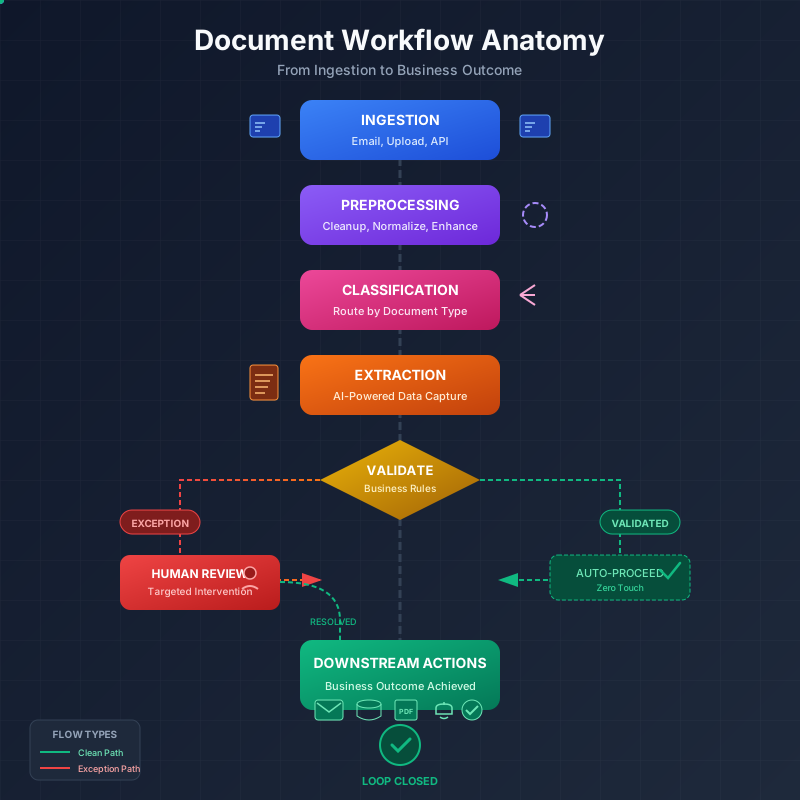
A well-designed document workflow has distinct stages, each handling a specific part of the process. Here's what that looks like in practice.
Documents arrive from multiple channels. Before extraction can happen, they need to be normalized. Image quality issues get corrected automatically. Skewed scans get straightened. Pages in the wrong orientation get rotated. Noise and artifacts get cleaned up. This preprocessing happens before extraction so your AI is working with the cleanest possible input.
Not all documents should follow the same path. Invoices route differently than contracts. Urgent documents get prioritized. A purchase order from your largest customer might need different handling than a routine receipt. Classification happens early so downstream stages are appropriate to the document type.
AI extracts the data, then validation rules check it against your business logic. Does this vendor exist in your system? Is this amount within the expected range? Do all required fields have values? Does this invoice number match an existing purchase order?
Validation failures route to exception handling rather than silently passing through. This catches problems early instead of letting bad data contaminate your downstream systems.
Smart workflows know when to pause for human judgment. Low-confidence extractions, validation failures, and high-value transactions get queued for review. Everything else proceeds automatically.
The key is making human review targeted and informed. When someone opens a flagged document, they should see exactly why it was flagged and have the AI's best guess already filled in. They're validating and correcting, not starting from scratch.
This is the payoff. Validated data triggers real business actions. Emails get sent. PDFs get generated. Records get created in your CRM or ERP. Approval workflows get initiated. Notifications go out to the right people.
The workflow doesn't end until the business outcome is complete. An invoice isn't "processed" when the data is extracted. It's processed when the payment is scheduled and the vendor is notified.
Let's walk through a concrete example. An invoice arrives via email to your AP inbox.
The workflow picks it up automatically and preprocesses the image. It classifies the document as an invoice and routes it to the invoice processing pipeline. Extraction pulls the vendor name, line items, amounts, tax calculations, and due date.
Now validation kicks in. The workflow checks the vendor against your approved vendor list. It compares the invoice amount to the associated purchase order. It looks for duplicate invoice numbers. It verifies the math adds up.
If everything passes, the invoice automatically creates a record in your accounting system and notifies the appropriate approver based on the amount and department. The approver gets an email with the invoice attached and a one-click approval option.
If validation fails, the invoice routes to an AP clerk's review queue. But not as a generic "please review this invoice" request. The queue shows exactly which validation failed. Vendor not found. Amount exceeds PO by 15%. Possible duplicate of invoice #12847. The clerk can resolve the specific issue rather than re-examining everything.
Once approved, payment gets scheduled according to your terms and the vendor receives confirmation.
Total human involvement on a clean invoice: zero. Human involvement on exceptions: targeted, informed, and fast.
Compare that to manual processing where every invoice, regardless of complexity, requires someone to open it, read it, type the data somewhere, check the vendor, compare to the PO, and route it for approval. The workflow handles the routine work automatically and focuses human attention on the cases that actually need it.
A financial services company receives a constant stream of mixed document types. Applications, supporting documents, correspondence, legal agreements, and compliance paperwork all flow into the same intake channels.
Without workflow automation, a central team manually sorts and forwards these documents. They open each one, figure out what it is, and send it to the right department. It's tedious, error-prone, and doesn't scale.
With a classification-based workflow, documents get routed automatically. Applications go to underwriting with extraction tuned for application fields like income, employment history, and requested amounts. Legal agreements route to compliance with different extraction models focused on terms, obligations, and effective dates. Correspondence gets flagged for customer service follow-up with key details highlighted.
Each department receives documents relevant to them, preprocessed and extracted appropriately, without anyone manually sorting and forwarding.
This scales in a way manual sorting can't. Adding a new document type means configuring a new branch in the workflow. You're not hiring more intake staff or overwhelming your existing team.
Things always go wrong. Poor image quality. Unusual document formats. Missing information. The question is whether your system handles exceptions gracefully or lets them pile up in someone's inbox.
A healthcare organization processes insurance verification documents. Most flow through cleanly, but some don't. Without smart exception handling, problematic documents either fail silently or clog the system waiting for someone to notice them.
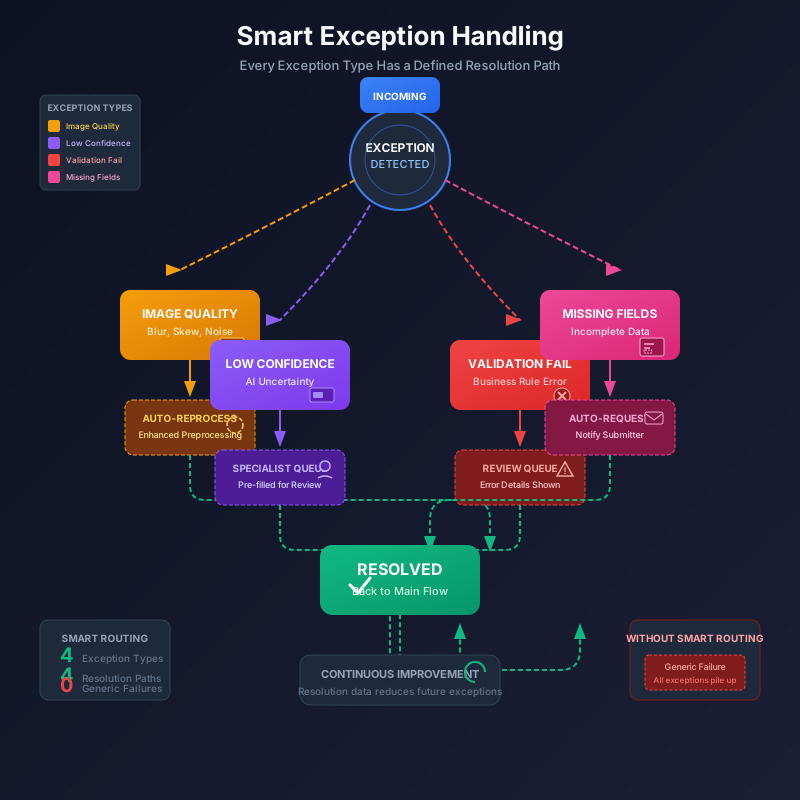
With workflow-based exception handling, each exception type has a defined path.
Image quality issues trigger automatic reprocessing with enhanced preprocessing. Maybe the original scan was too dark or the resolution was too low. The system tries to fix it before giving up.
Low-confidence extractions route to a specialist review queue with the AI's predictions pre-filled. The reviewer validates or corrects rather than extracting from scratch.
Missing required fields generate automatic requests back to the submitter. Instead of a generic "your document couldn't be processed" message, the submitter gets a specific request for the missing information.
Exceptions get resolved faster because they're categorized and routed appropriately. And resolution data feeds back into the system. If a particular document format consistently causes problems, you can see that pattern and address the root cause.
Workflows need to run at the right time, not just be well-designed.
There are two activation models. Scheduled execution handles batch processing, like processing all documents received overnight or generating end-of-day reports. Trigger-based execution handles real-time response, firing when a new email arrives, a form gets submitted, or an integration webhook fires.
Sophisticated document operations often combine both. Real-time processing handles urgent documents immediately. Scheduled batch runs handle reconciliation and cleanup. You might process incoming invoices in real-time but run a nightly workflow that catches anything that slipped through or needs reprocessing.
The point is that workflow automation isn't just about what happens. It's about when it happens and what initiates it.
Some practical advice for designing workflows that work beyond the demo.
Start with your highest-volume, most standardized document type. Get one workflow working well before expanding. Trying to automate everything at once usually means nothing works reliably.
Build in visibility from the start. You need to see where documents are in the pipeline and where they're getting stuck. A workflow that processes documents but gives you no insight into what's happening is just a different kind of black box.
Design for exceptions explicitly. Don't assume happy paths. The documents that cause problems are the ones you need to think through most carefully.
Plan for human review stages even if you hope to eliminate them later. It's easier to remove a human step than to add one after the fact. Start with more human checkpoints than you think you need, then remove them as you build confidence.
Test with ugly documents. The clean samples from your vendor demo don't represent your real document population. Scan quality varies. Formats differ. Handwriting appears. Your workflow needs to handle what actually comes in, not an idealized version.
Map one existing document process from arrival to business outcome. Identify every manual step and handoff. This becomes your blueprint for workflow design.
Start with a workflow that has clear, measurable value. Invoice processing, application intake, or compliance document handling are good candidates. Don't start with a complex edge case that only comes up occasionally.
If you've already done extraction work, you don't have to rebuild everything. Existing extraction configurations can be incorporated into workflows incrementally. Add the orchestration layer around what you've already built.
The goal isn't to automate everything immediately. It's to close the loop on your most impactful document processes, reduce manual intervention on routine work, and focus human attention where it actually matters.

Head IT Operations - Co Founder of Artificio
See it in your SAP environment
Bring us a document, a process, or a bottleneck. We'll show how Artificio captures, validates, and posts into SAP — then scale from there.
Security & compliance
ISO 27001:2013 certified, SOC 2 Type 2 compliant, GDPR and HIPAA ready. Every agent action is logged, auditable, and runs in isolated environments.