

Blog
The 30-Second Document Checklist Before AI Upload
Stop manual errors! Use our simple 5-point, 30-second checklist to clean documents before AI processing.

Blog
Stop manual errors! Use our simple 5-point, 30-second checklist to clean documents before AI processing.
Before you hit "Upload," spend 30 seconds doing this. Your AI (and your accuracy rate) will thank you.
We've all been there. You scan a stack of invoices, upload them to your document processing system, and then spend the next hour fixing extraction errors that could have been avoided. The AI missed a field. The numbers came out wrong. A whole section got skipped. You end up manually entering data anyway, which defeats the entire purpose of automation.
Here's the thing most people don't realize: AI is incredibly powerful, but it's not magic. It needs good raw material to work with. Think of it like cooking. You can have the best chef in the world, but if you hand them spoiled ingredients or vegetables that haven't been washed, the meal won't turn out right. The same principle applies to document processing. The quality of what goes in directly determines the quality of what comes out.
But here's the good news. You don't need to be a technical expert to improve your results dramatically. You just need to spend 30 seconds checking five simple things before you upload any document. That's it. Five quick checks that anyone can do, and your accuracy rate will improve immediately.
This isn't about understanding AI algorithms or learning complex technical processes. This is about basic preparation that makes everything downstream work better. Think of it as the document equivalent of looking both ways before crossing the street. Simple, fast, and it prevents problems.
Let's walk through each check. Print this out if you want. Tape it next to your scanner. Share it with your team. These five steps will save you hours of correction time and make your entire document processing workflow smoother.
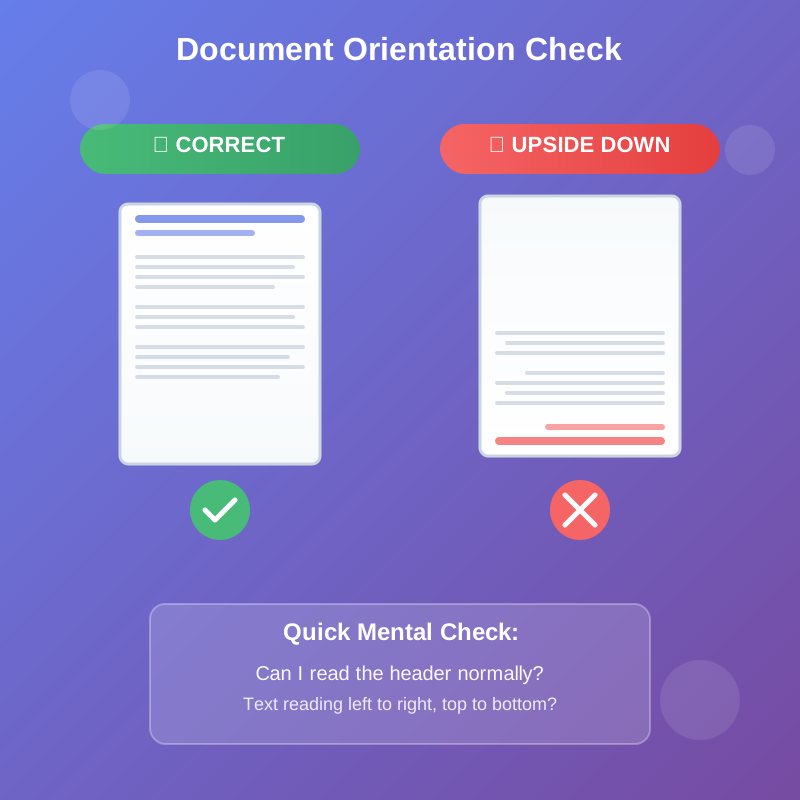
This sounds almost too obvious to mention, but you'd be surprised how often documents get uploaded upside down or rotated the wrong way. It happens more than you think, especially when you're processing a large batch of mixed documents. Someone sets a page down backwards. A document feeder grabs a sheet that was facing the wrong direction. You're moving fast and don't notice.
When a document is upside down or sideways, the AI has to work much harder to process it. Some systems can auto-rotate, but that takes extra processing time and can introduce errors. Other systems simply can't handle it and will fail completely or extract gibberish. Even if the system can technically handle rotation, you're adding an unnecessary layer of complexity that increases the chance of mistakes.
The fix is simple. Before you upload anything, take one second to glance at the page. Is the text reading normally from your perspective? Can you read the header without tilting your head? If not, rotate it. Most scanning software has a quick rotate button. Use it. This single action can prevent a cascade of errors down the line.
Pay special attention when you're processing documents that have been faxed, photocopied multiple times, or pulled from old file cabinets. These documents often end up rotated because they've been handled by multiple people over time. Someone filed it upside down. Someone else scanned it without checking. By the time it gets to you, it's backwards.
Also watch out for documents that have been stapled and then separated. When you remove a staple and flip through pages quickly, it's easy to get one page turned around without noticing. This is especially common with multi-page forms where different sections were filled out by different people.
Make it a habit. Every time you're about to scan or upload, do a quick visual sweep. Top of the page at the top? Text reading left to right? Good. Move forward. This takes less than a second and saves minutes or even hours of troubleshooting later.
Here's a simple rule that will save you endless frustration: If you can't read it easily, your AI probably can't either. Put yourself in the AI's position for a moment. You're trying to identify characters and words from an image. If that image is blurry, too dark, washed out by glare, or covered in shadows, you're going to struggle. The AI faces the exact same challenges.
Stand back and look at your document like a stranger seeing it for the first time. Can you read every word clearly without squinting? Are there any sections where the text fades out or gets fuzzy? Is there a shadow falling across part of the page? Is there glare from a window or overhead light reflecting off the paper? These are all red flags.
Blur is one of the most common problems. It happens when documents are photocopied repeatedly, when someone's hand moved while taking a photo, or when a scanner's glass is dirty. Text that looks sharp and crisp processes beautifully. Text that looks soft and fuzzy around the edges creates extraction errors. You'll get wrong numbers, missing words, or complete blanks where data should be.
Contrast matters too. If your document is a faint photocopy where the text is barely darker than the background, the AI will have trouble distinguishing characters. This is especially common with thermal printer receipts that have faded over time, or carbon copies where the impression wasn't strong enough. If you're looking at a document and thinking "I can barely read this," don't expect the AI to do better.
Shadows are another culprit people often miss. When you take a photo of a document with your phone, be aware of where the light is coming from. If you're casting a shadow across the page, that shadow falls on text and makes it harder to read. The same thing happens with overhead lighting when you're using a flatbed scanner. A shadow in the binding area of a book or bound report can obscure entire lines of text.
Glare works the opposite way but causes the same problem. When light reflects off glossy paper or laminated cards, it creates bright spots where nothing can be read. ID cards are notorious for this. The plastic coating reflects light, creating a bright white rectangle right where the important information is. Tilt the document, adjust your position, or block the light source. Get rid of that glare before you scan.
Here's a practical test. Hold the document at arm's length. Can you still read the important parts? If not, you need better quality. Get a clearer copy, re-scan with better settings, or clean your scanner glass. Don't settle for "good enough." In document processing, "good enough" usually means "going to cause problems."
One more thing to watch for: handwriting. If someone's handwriting is messy or cramped, and you're having trouble reading it yourself, the AI will almost certainly struggle too. This doesn't mean you can't process handwritten documents. It just means you need to be realistic about accuracy expectations. If you can barely make out what someone wrote, you might need to flag that document for manual review right from the start.
This check catches one of the most frustrating document processing errors: missing data because part of the page didn't make it into the scan. You'd think this would be obvious, but it happens all the time. A corner gets cut off. The edge of the page wasn't quite on the scanner bed. Someone took a photo that cropped out the bottom section. The document feeder didn't grab the full width of an oversized page.
Look at all four edges of your document before you upload it. Is there text or information that runs right to the edge? If so, is that edge fully visible in your scan or photo? Even a small amount of cropping can cause major problems if it cuts off key data fields.
This is especially important for forms where information appears in boxes or fields near the margins. Tax forms, application forms, invoices with totals at the bottom, all of these can have critical information right at the edge. If that edge gets cut off, the AI will never see that information. You'll process the document thinking everything is fine, only to discover later that you're missing essential data.
Pay extra attention to the bottom of documents. For some reason, bottom cropping is more common than any other edge. Maybe it's because people don't scroll down far enough when reviewing their scans. Maybe it's because document feeders don't always pull pages all the way through. Whatever the reason, always double-check that the bottom of the page is there, especially if that's where signatures, totals, or date fields appear.
Corner damage is another thing to watch for. Real-world documents get handled, filed, and shuffled around. Corners get folded, torn, or dog-eared. If information was printed in that damaged corner, you've got a problem. Sometimes you can unfold a corner before scanning. Other times the damage is permanent and you need to note that the document is incomplete.
Binding and staples cause their own set of edge problems. When you scan a page from a bound book or stapled packet, the area near the binding often doesn't lay flat. This creates a curved edge where text can disappear into the shadow or fall outside the scan area. If you're processing important documents from bound sources, you might need to carefully remove pages from the binding first, or use a different scanning method that handles bound materials better.
Oversized documents are tricky. If you're trying to scan something larger than your scanner bed or larger than a standard page size, parts of it will get cut off unless you make adjustments. You might need to scan it in sections and combine the images, or use a specialized large-format scanner. Don't just cram an oversized document onto a small scanner and hope for the best. You'll lose critical information.
The same issue comes up with photos taken by phone. When someone takes a quick photo of a document, they often don't frame it carefully. The top or bottom gets cut off. One side is outside the frame. Always check that the entire page is in the shot before you upload. It takes two seconds to retake a photo, but it takes much longer to fix missing data later.
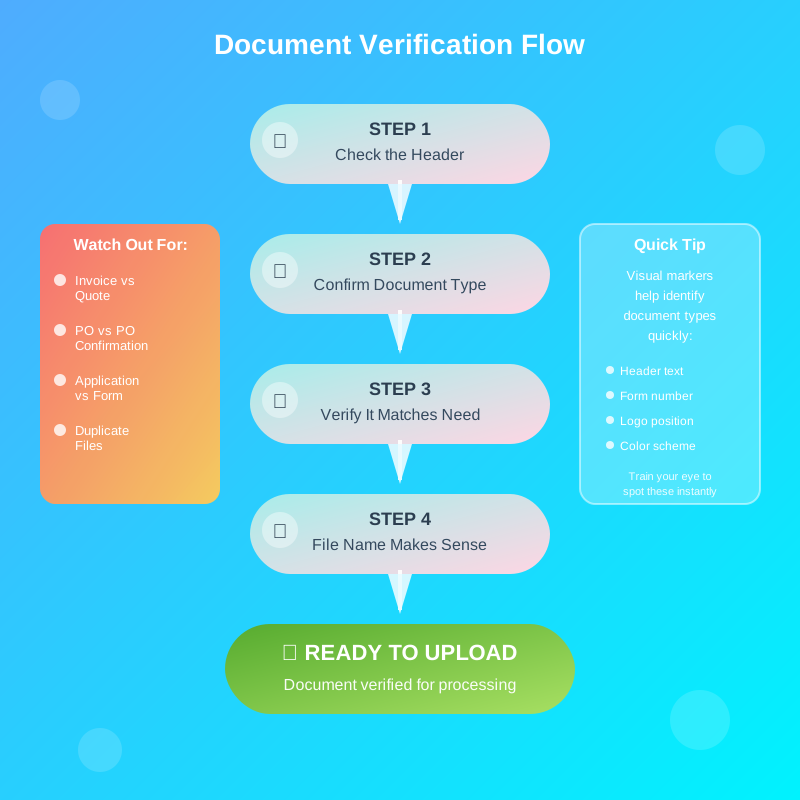
This check is about making sure you're uploading what you think you're uploading. It sounds basic, but mix-ups happen constantly. You meant to upload an invoice but grabbed a packing slip instead. You're processing loan applications but accidentally included someone's personal letter. You've got ten files with similar names and you clicked the wrong one.
Before you hit upload, look at the document and confirm what it actually is. Read the header. Check the title. Verify the document type. This quick confirmation prevents a surprising number of problems.
Document type confusion causes real issues in automated processing. Most AI systems are trained to expect certain types of documents in certain workflows. If you upload the wrong type, the system will either fail to process it correctly or worse, will extract data that looks right but is actually completely wrong. Imagine uploading a receipt when the system expects an invoice. Both have similar fields like dates, amounts, and vendor names, but they mean different things. The AI might extract the data successfully, but you'll end up with incorrect information in your system because the context was wrong.
File naming confusion is incredibly common. You've got files named "document1.pdf," "document2.pdf," "final_version.pdf," "final_version_UPDATED.pdf." Which one is actually the one you need? Take a second to open it and look. Don't rely on file names alone. People make mistakes when naming files, and those mistakes propagate through your workflow if you don't catch them.
This problem gets worse when you're working with files that have been emailed back and forth. Someone sends you a document for processing. You request changes. They send an updated version but don't change the file name. Now you've got two files with identical names but different content. Which one is the current version? You have to open them and check. There's no shortcut.
Batch processing makes this check even more important. When you're uploading twenty or fifty documents at once, it's tempting to skip the individual verification step. But one wrong document in that batch can throw off your entire workflow. Maybe it causes the system to error out and stop processing. Maybe it processes successfully but puts wrong data in your database. Either way, you've created extra work.
Watch out for documents that look similar but aren't the same. Purchase orders and purchase order confirmations look alike. Quotes and invoices have similar layouts. Employment applications and employee information forms share many fields. If your system is expecting one but receives the other, you'll get unpredictable results.
Here's a practical tip: develop a quick visual identification habit. Train yourself to spot the key marker that identifies each document type you work with regularly. For invoices, maybe it's the word "INVOICE" in large letters at the top. For contracts, maybe it's the signature block at the bottom. For forms, maybe it's a specific form number in the corner. Once you know what to look for, this check takes just a moment.
Also check for duplicates. If you're processing documents and something feels familiar, you might be about to upload the same document twice. This happens when files get downloaded multiple times, when documents are accidentally saved in multiple locations, or when someone forwards you something you already have. Processing duplicates wastes time and can create confusion in your records. A quick glance can catch this before it becomes a problem.
This last check catches a very specific but surprisingly common problem. Someone sends you a document, but instead of sending the actual file, they took a photo of their screen showing the document. Or worse, they took a photo of a printout that was originally a digital file. You end up with a photo-of-a-photo situation that degrades quality with each step.
Digital documents should stay digital whenever possible. If you have a PDF, upload the PDF. If you have a Word document, export it as a PDF and upload that. Don't print it, scan it, and then upload the scan. Don't take a screenshot, save that screenshot as an image, and upload the image. Every conversion step degrades quality and introduces potential errors.
Screen photos are particularly bad for document processing. When you photograph a screen, you capture not just the document but also the screen's pixel structure, any glare from the display, variations in brightness across the screen, and sometimes even visible scan lines. All of these things interfere with text recognition. The AI is trying to read text, but it's also dealing with moire patterns, screen artifacts, and lighting variations that don't exist in the actual document.
Photos of printouts are another common offender. Someone prints a document from email, then scans that printout. Why? Usually because they don't know how to save the email attachment directly, or because their scanning workflow is set up around paper and they default to printing everything first. But each time you print and re-scan, you lose quality. The printer adds its own artifacts, the paper might not be perfectly white, and the scan adds another layer of degradation.
The same principle applies to faxes, photocopies, and any other conversion process. Every time you copy a document, quality drops. If you can get the original digital file, do that instead. If the document started as digital, try to keep it digital all the way through your processing pipeline.
Here's how to identify these problem documents. Look for telltale signs like visible pixel grids, uneven lighting across the page, or that characteristic "photo of a screen" look where the document seems to glow or has slightly blurry text. Real scans of paper documents have a different look. They're evenly lit, the text is crisp against the background, and you don't see pixel structures or screen artifacts.
If you receive a document that looks like it might be a screen photo, go back to the source if possible. Ask for the original file. Explain that you need the best quality version for processing. Most people don't realize they're making things harder by sending photos of screens. Once you explain why you need the original file, they're usually happy to send it.
When you're training your team, emphasize this point. Digital files should be shared as digital files. If someone needs to send you a document from their email, they should forward the email or save the attachment and send that. They shouldn't take a screenshot of the email showing the attachment. If someone has a PDF on their computer, they should send the PDF file itself, not open the PDF and photograph their screen.
Sometimes you don't have a choice. Sometimes a screen photo or a photo of a printout is all you've got. In those cases, do what you can to optimize it. Crop it tightly to just the document area. Adjust the brightness and contrast if your image editing software allows. Try to clean it up before uploading. It won't be perfect, but every little bit helps.
There's one exception worth mentioning. Sometimes people intentionally photograph physical documents with their phones, and that's actually fine. A good photo of a paper document taken with a modern smartphone camera can work perfectly well for document processing. The key is that it's a photo of the actual physical document, not a photo of that document displayed on a screen. Photo of paper: usually good. Photo of screen: usually bad. That's the distinction to remember.
The five checks we've covered take about 30 seconds total once you get used to them. Right-side up? Readable? Whole page? Right document? Not a screen photo? Run through this mental checklist before every upload and your processing accuracy will improve dramatically.
At first, you'll need to consciously remind yourself to do each check. You might even want to print this blog post and keep it visible near your scanning station. But after a week or two of practice, these checks become automatic. You won't think about them anymore. Your eyes will just naturally scan for these issues before you hit the upload button.
The time you invest in these 30-second checks pays back immediately. You'll spend less time fixing errors. Your accuracy rates will go up. Your team will trust the automated extraction results more. And you'll avoid those frustrating situations where you process a batch of documents only to discover that half of them had problems that should have been caught at the start.
Think of these checks as quality control, not as extra work. They're not slowing you down. They're preventing problems that would slow you down much more later. It's like taking a moment to make sure you're drilling in the right spot before you pull the trigger on the power drill. That moment of checking prevents wasted effort and mistakes.
You can also build these checks into your team's standard operating procedures. When you train new people on document processing, include this checklist as part of their training. Make it clear that checking documents before upload isn't optional or a nice-to-have. It's a required step in the workflow, just like saving your work or backing up files. When everyone on the team follows the same checklist, overall quality improves and problems decrease.
Some organizations even create physical laminated cards with these five checks printed on them. Every scanning station gets a card. Every desk where people upload documents gets a card. It becomes a visual reminder that's always there. You'd be surprised how effective this simple approach can be.
For teams that process large volumes of documents, you might want to build random quality audits into your workflow. Every so often, have someone review a random sample of uploaded documents to check whether these five quality standards are being met consistently. If you find problems, use them as coaching opportunities. Show people the specific issues you found and explain how the pre-upload check would have caught them.
The goal isn't perfection. You'll still occasionally upload a document that has issues. Things slip through. But if you catch 90% of the problems before they enter your system instead of catching 10%, you've made massive improvement. Your downstream processes run smoother. Your AI performs better. Your data quality increases. All from 30 seconds of checking.
You might be wondering why we're spending so much time on what seems like basic preparation. After all, isn't AI supposed to handle these kinds of variations? Isn't the whole point of using document automation that you don't have to worry about every little detail?
Here's the truth that not enough people talk about: AI is extremely good at its job when you give it good input. But it's not a miracle worker. The algorithms that power document processing are trained on millions of examples of clean, clear, properly formatted documents. When you feed them documents that match those training examples, they perform brilliantly. When you feed them degraded, rotated, incomplete, or wrong-type documents, they struggle.
It's not a limitation of the AI itself. It's just reality. Think about human document processors. A skilled person can handle a wider range of quality issues than an AI can, but even humans perform better and faster when the documents they're working with are clear and complete. You'd never hand a human processor a stack of documents that were upside down, barely readable, and mixed with the wrong types of files, then expect perfect results at top speed. You'd fix those obvious problems first. The same courtesy should extend to your AI systems.
The economic impact is real too. When documents process cleanly on the first try, everything moves faster. When they fail or produce errors, someone has to intervene. That intervention costs time and money. If you're processing thousands of documents per month, and even a small percentage require manual correction, those costs add up quickly. Spending 30 seconds per document on the front end to ensure quality can save hours of correction time on the back end.
There's also a trust factor. When your automated document processing system consistently produces accurate results, people trust it. They rely on it. They integrate it into their workflows. But when the system frequently produces errors, people lose confidence. They start double-checking everything manually, which defeats the purpose of automation. Building trust in your system starts with feeding it good quality documents.
Data quality downstream matters too. If you're extracting data from documents and feeding that data into other systems like accounting software, CRM platforms, or inventory management tools, errors compound. One wrong number in an invoice becomes a wrong payment amount becomes a supplier relationship problem becomes a financial reporting error. One missing field in an application becomes an incomplete record becomes a compliance issue. Clean data going in means clean data throughout your entire operation.
Document processing doesn't have to be complicated. You don't need to understand machine learning algorithms or train custom AI models. You just need to develop good habits around document quality before you upload anything.
Five quick checks, 30 seconds of your time, and dramatically better results. That's the deal. Right-side up, readable, complete, correct document type, and not a photo of a screen. That's all it takes.
Print this checklist if it helps. Share it with your team. Tape it near your scanner. Make it part of your routine. The investment is tiny, but the payoff is huge. Your AI will perform better, your accuracy will improve, and you'll spend less time fixing problems that should never have happened in the first place.
Because here's what it comes down to: your AI is only as good as what you feed it. Feed it clean, clear, complete documents and it will give you accurate, reliable results. Feed it messy, unclear, or inappropriate documents and you'll struggle with errors no matter how sophisticated your AI system is.
So before you hit that upload button, take 30 seconds. Run through the five checks. Make sure you're setting your AI up for success. That's how you get the results you're looking for.
That's it. Five checks, 30 seconds, better results. Print this. Share it. Use it.

Head IT Operations - Co Founder of Artificio
See it in your SAP environment
Bring us a document, a process, or a bottleneck. We'll show how Artificio captures, validates, and posts into SAP — then scale from there.
Security & compliance
ISO 27001:2013 certified, SOC 2 Type 2 compliant, GDPR and HIPAA ready. Every agent action is logged, auditable, and runs in isolated environments.